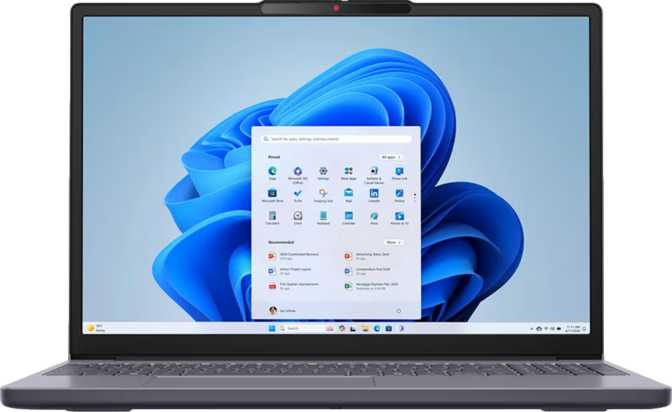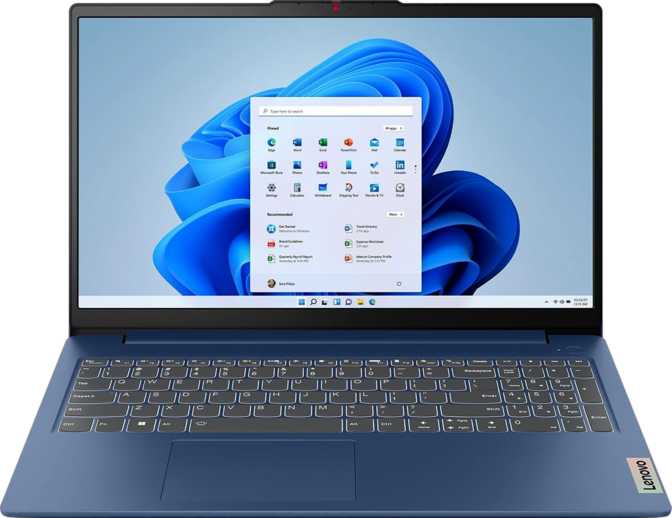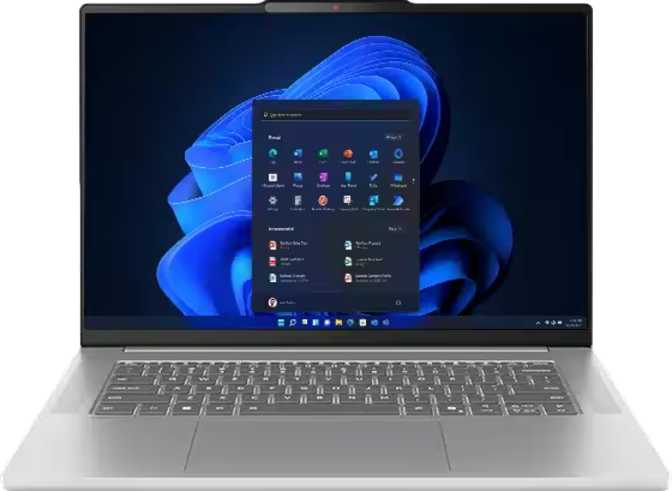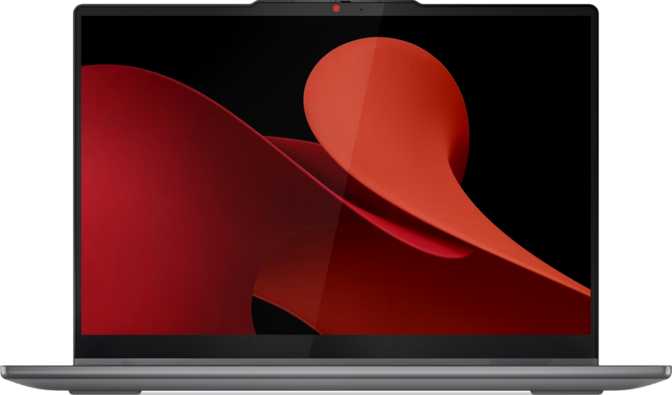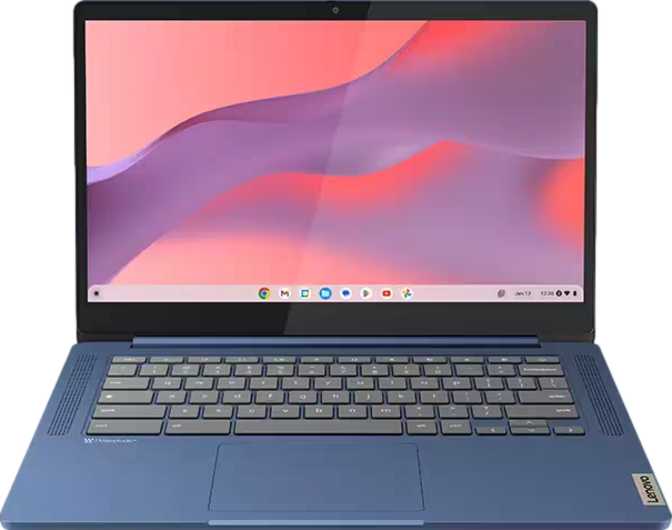
Lenovo IdeaPad Slim 3 Chromebook (2025) 14-Inch: A Full Review
LaptopsThere is a specific kind of laptop buyer the Lenovo IdeaPad Slim 3 Chromebook (2025) is built for: someone who wants a large enough screen to work comfortably, enough memory to keep a dozen browser tabs open without panic, and a price point that does not require a serious conversation with a budget spreadsheet. This 14-inch machine lands squarely in the middle of the entry-level Chromebook market—a space crowded with compromises. The question is not whether it does everything. It does not. The question is whether it does the right things well enough for the people who will actually use it.
At a Glance
Overall Rating
out of 5.0
8 GB RAM
Above segment average
14” Full HD
1920×1080 crisp panel
Wi-Fi 6
Current-gen standard
1.3 kg
Lighter than most 14” rivals
47 Wh
Full working-day capacity
2 Years
Longer than most competitors
Design and Build Quality
At just under 1.3 kilograms, the IdeaPad Slim 3 Chromebook earns its “Slim” branding. Carrying it in a bag all day is genuinely effortless—lighter than most hardcover books and noticeably less fatiguing than the average 14-inch Windows notebook. The chassis sits at 18 mm thick, which means it slips easily into slim-profile bags without the usual geometric negotiation.
The physical proportions are sensible for the screen size: not too wide for a small desk, and shallow enough front-to-back that it sits comfortably on economy-class tray tables and café counters alike. What the design does not offer is equally worth knowing upfront: there is no weather sealing, no rugged reinforcement, and no drop certification here. This is a clean, everyday machine built for predictable environments—home offices, school desks, and library tables.
Lenovo covers this device with a two-year warranty, a meaningful differentiator in a segment where one year is the standard. That extra coverage year reduces the long-term ownership risk considerably.
No Backlit Keyboard
This is one cost-cutting choice that affects daily use more than almost any other omission on this machine. In a dimly lit room, on a late-night flight, or in any low-light environment, the keys are invisible. If you regularly work after dark or in variable lighting, factor this in before committing.
Build Specifications
- Type
- 14” Chromebook
- Weight
- 1,300 g (approx. 2.9 lbs)
- Thickness
- 18 mm slim profile
- Footprint
- 325 × 221 mm
- Keyboard Backlight
- Not Available
- Weather Sealed
- No
- Rugged Build
- No
- Cooling
- Active fan (not fanless)
- Warranty
- 2 Years
Display: Sharp for Work, Limited by Missing Extras
The 14-inch screen delivers full 1080p resolution which, at this panel size, produces a pixel density that makes text crisp and icons well-defined. There is no pixelation or fuzziness during regular use—web pages, documents, and video calls all render cleanly. The 60 Hz refresh rate is standard for this category and entirely appropriate for the tasks Chromebooks handle: browsing, video conferencing, document editing, and streaming are all perfectly smooth at this rate.
Two Display Limitations Worth Knowing
No Touch Input
This is a non-touchscreen Chromebook, which is increasingly uncommon in this category. Many users now expect direct screen interaction, especially on Chrome OS where touch is intuitive. You are limited to keyboard and mouse here.
No Anti-Glare Coating
In bright environments—near a window, outdoors, under overhead office lighting—the screen produces noticeable reflections. Users in bright workspaces will find themselves adjusting screen angles more often than they would like.
Display Specifications
| Screen Size | 14 inches |
| Resolution | 1920 × 1080 (Full HD) |
| Pixel Density | 157 PPI — sharp at normal viewing |
| Refresh Rate | 60 Hz |
| Touch Screen | No |
| Anti-Glare | No |
Performance: What the Chip Architecture Really Means
This Chromebook runs on an ARM-based processor using big.LITTLE architecture—a split-core design pairing two higher-performance cores with six efficiency-focused cores. Demanding tasks are routed to the powerful cores; background processes idle on the efficient ones. The 7-nanometre fabrication process is associated with modern, power-efficient designs rather than heat-generating older architectures, which is why this machine manages its thermals without constant fan noise.
CPU Benchmark Context
Geekbench 5 scores—relative to laptop category
These scores place the chip firmly in the budget tier. Comfortable for browsing, video calls, and documents with twenty-plus tabs open. Not suited to video editing, complex spreadsheet macros, or demanding local applications.
Memory — 8 GB RAM
Eight gigabytes is the sweet spot for Chrome OS. It is enough to keep a genuinely productive tab count open—significantly more comfortable than the four-gigabyte configurations still sold by some competitors at comparable prices. Data moves between processor and memory at a high rate for its DDR4 generation, keeping workflows smooth under real multitasking pressure.
Not upgradeable. 8 GB is the ceiling this system supports—what you buy is what you keep.
Storage — 128 GB
The flash-based 128 GB drive has no moving parts and no mechanical failure risk. However, it does not use NVMe technology—the faster direct-connection standard found in premium machines. Large file transfers and app installs run noticeably slower than on NVMe-equipped rivals.
The microSD card slot provides inexpensive storage expansion for offline media or downloaded content.
Battery Life: Full-Day Endurance in Normal Conditions
The battery capacity, combined with the energy efficiency of the ARM-architecture chip and the undemanding nature of Chrome OS, typically translates into a full working day on a single charge under mixed real-world conditions. Light tasks—document writing, browsing, video calls—push usage toward the longer end of that range. Continuous streaming or heavier workloads pull it shorter.
Charging is handled through the USB-C port, a practical convenience that means a wide range of compatible chargers will work in a pinch. There is no proprietary connector here. No fast-charge technology is listed in the specifications, so expect a full standard charge cycle rather than a quick top-up.
No Sleep-and-Charge USB Ports
The USB ports cannot charge other devices when the laptop is powered off or in sleep mode. Users who habitually charge phones or earbuds via their laptop overnight will need to use a separate charger.
Battery Snapshot
- Capacity
- 47 Wh
- Charging
- Via USB-C port
- Proprietary Adapter
- None — USB-C
- Fast Charging
- Not Listed
- USB Charge Pass-Through
- Not Supported
Connectivity: Wi-Fi 6 Is a Genuine Win, Ports Are the Weak Point
Wired Port Summary
| Port Type | Count | Speed / Standard |
|---|---|---|
| USB-C | 1 | 5 Gbps (USB 3.2 Gen 1) |
| USB-A | 1 | 5 Gbps (USB 3.2 Gen 1) |
| MicroSD Slot | 1 | Varies by card |
| 3.5 mm Audio Jack | 1 | Headphone & mic combo |
| HDMI | 0 | Adapter required |
| Ethernet (RJ45) | 0 | Not available |
| DisplayPort | 0 | Not available |
| Thunderbolt 3 / 4 | 0 | Not available |
No HDMI — External Displays Require an Adapter
Connecting to a monitor or projector requires a USB-C to HDMI adapter, sold separately. In classrooms, meeting rooms, and hotel rooms with a cable already waiting, you will need an adapter in your bag every time.
Wireless Connectivity
Wi-Fi 6 (802.11ax)
Current-generation standard
Wi-Fi 6 delivers faster speeds and better performance in congested wireless environments—offices, apartments, and schools with many competing devices. It also improves power efficiency during wireless use. The machine supports previous Wi-Fi generations (5 and 4), ensuring compatibility with any existing router.
Bluetooth 5.3
Latest-generation standard
Current-generation Bluetooth provides stable, low-power connections to wireless headphones, keyboards, mice, and other peripherals. Pairing is reliable and connection range is solid across typical indoor distances.
AirPlay Support
Software-level wireless streaming
An unexpected inclusion on a Chrome OS device. AirPlay compatibility enables wireless media streaming to Apple TV units and AirPlay-capable speakers—a genuine bonus for households that mix Chromebooks with Apple ecosystem hardware.
Key Features: What You Get and What You Don’t
Features Present
Features Absent
Who Should Buy This Chromebook — and Who Should Not
This Machine Suits…
- Students at secondary or university level who primarily need a reliable, portable tool for browsing, research, and document writing.
- Families looking for a shared household machine for light tasks—video calls, streaming, light homework, and general browsing.
- Google Workspace professionals who operate almost entirely in Docs, Sheets, Meet, and Gmail and need a lightweight travel companion.
- Chromebook upgraders moving from an older, slower, or memory-constrained model who want meaningfully more headroom without overspending.
- Portability-first buyers who prioritise all-day carry comfort and full-day battery endurance over raw performance or a wide feature set.
This Machine Does Not Suit…
- Frequent external display users who connect to a monitor or projector regularly without wanting to carry and manage an adapter.
- Low-light keyboard users who type regularly after dark, on flights, or in dim offices where a backlit keyboard is not a luxury but a necessity.
- Windows software dependents who rely on applications that only run on Windows. Chrome OS does not run standard Windows software, full stop.
- Large local file managers who download heavy content offline—128 GB fills faster than expected once Android apps and media accumulate.
- Multi-peripheral users who need a mouse, keyboard, USB drive, and charging connection simultaneously without carrying a hub.
How It Stacks Up Against Budget Chromebook Rivals
At the 14-inch Chromebook tier, the IdeaPad Slim 3 competes with offerings from ASUS, HP, and Acer in a similar configuration and price range. Here is how the key factors compare.
| Consideration | Lenovo Slim 3 CB 2025 | Typical Budget Competitor A | Typical Budget Competitor B |
|---|---|---|---|
| RAM | 8 GB | Often 4 GB | 4–8 GB |
| Display | 1080p, no touch | Mixed; some offer touch | Often 1080p, some touch |
| Keyboard Backlight | None | Sometimes included | Often included |
| HDMI Port | Adapter required | Often included | Often included |
| Warranty | 2 Years | Usually 1 Year | Usually 1 Year |
| Wi-Fi Standard | Wi-Fi 6 | Often Wi-Fi 5 | Wi-Fi 5 or Wi-Fi 6 |
| Weight | ~1.3 kg | Often 1.5 kg or more | Often 1.4–1.6 kg |
| Anti-Glare Screen | No | Sometimes | Sometimes |
The IdeaPad Slim 3 trades a backlit keyboard and a built-in HDMI port for an above-average memory configuration, a lighter chassis, and a longer warranty. Whether that trade-off is right depends entirely on which of those factors matters most in your daily use.
Strengths and Weaknesses: An Honest Look
Where It Gets Things Right
The IdeaPad Slim 3 Chromebook gets something fundamentally right that cheaper alternatives get wrong: the memory configuration. Eight gigabytes of RAM on a Chromebook transforms the experience from workable to comfortable. Tabs do not evaporate when you switch windows, applications do not reload from scratch, and multitasking during a video call does not feel like negotiation. For anyone who has used a memory-constrained Chromebook and found it frustrating, this machine will feel like a meaningful step forward.
The weight and form factor are similarly well-judged. At just over a kilogram, this is genuinely pocket-light in a bag. The 18 mm profile does not catch on zippers or create awkward angles in a laptop sleeve. For daily carry between home, office, or campus, it simply disappears into the bag rather than demanding attention.
The wireless stack is the third genuine strength. Wi-Fi 6 and Bluetooth 5.3 are current-generation standards that will remain relevant for years. In congested wireless environments, the speed and reliability difference versus older wireless generations is tangible—and the two-year warranty is a level of coverage that genuinely reduces long-term ownership risk.
Where It Falls Short
The port selection and display extras are where the compromises show most clearly. The absence of HDMI is the kind of omission that does not bother users until the moment it does—and when that moment arrives, whether in a meeting room or a classroom, it is a genuine inconvenience rather than a minor friction. A single USB-C and single USB-A means that any workflow involving more than two peripherals demands a hub.
The missing backlit keyboard is a daily frustration in certain environments, not a niche concern. It is the kind of omission that makes the laptop genuinely harder to use rather than merely less luxurious. The display, while technically competent at full HD resolution, lacks anti-glare treatment that makes it less versatile than it could be—anyone near a window or working under overhead lights will be adjusting screen angles regularly.
The non-NVMe storage, while functional, is the slowest component in an otherwise acceptable specification profile. For cloud-first use it matters less, but users who handle large local files or install many Android apps will notice the pace of transfers and installs compared to faster-equipped machines in the same price neighbourhood.
Questions Real Buyers Ask Before Purchasing
Final Verdict
Lenovo IdeaPad Slim 3 Chromebook (2025)
Recommended for the right buyer
The Lenovo IdeaPad Slim 3 Chromebook (2025) is a well-targeted machine for a well-defined user. If you need a lightweight, reliable, cloud-first laptop with enough memory to multitask comfortably, a 14-inch full HD display, current-generation wireless, and a longer-than-average warranty, this delivers all of that without unnecessary frills.
The trade-offs are real but contained. No backlit keyboard, no HDMI, limited ports, and a display that struggles with glare are genuine limitations—but none are dealbreakers for the right buyer. For a student, a home office user, or a light traveller who lives in Google’s ecosystem, those omissions are the price of a machine that is genuinely portable and genuinely comfortable in the memory department.
If you need to connect to external displays regularly, work in dim lighting often, or require multiple peripherals simultaneously without carrying a hub, look at alternatives that include HDMI and a backlit keyboard even if they cost slightly more. For everyone else—the browser-first, cloud-first, portability-first user—the IdeaPad Slim 3 Chromebook makes a strong case as the sensible choice in its category.
Best For
- Students and home users
- Google Workspace professionals
- Daily-carry lightweight users
- Cloud-first, browser-first workflows
Not Ideal For
- Windows software users
- Frequent external display connection
- Low-light keyboard typists
- Heavy local file or media users