HP DeskJet 2810e All-in-One: An Honest Review for Home Users
PrintersAt a Glance
Editor's Rating
A capable, no-fuss home printer for users who print light and value wireless simplicity above all else.
Compact, Capable, and Built for the Light-Touch Home User
Not everyone needs a printer that punches out 30 pages a minute or manages a 500-sheet paper reserve. For a significant portion of home users — students who print the occasional assignment, remote workers who need a quick contract scan, or households that produce a dozen pages on a busy week — buying an overspecified printer means paying for features that will sit idle. The HP DeskJet 2810e is built for exactly this audience: a no-frills, wireless all-in-one that handles the basics without demanding desk real estate, technical expertise, or a large upfront investment.
Understanding what this printer is — and what it deliberately is not — is the key to evaluating it honestly. It is not trying to compete with office workhorses. It is competing for the corner of your home desk, and on that turf, several of its choices are genuinely smart.
Design, Build Quality, and Physical Experience
A Small Printer That Stays Small
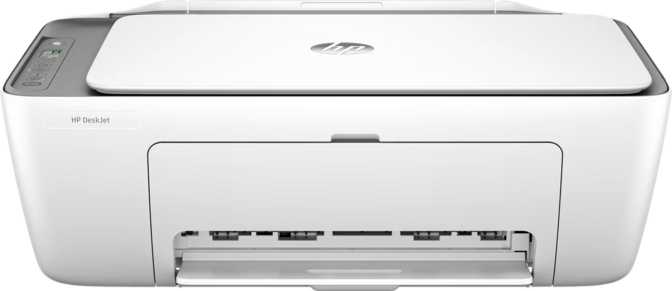
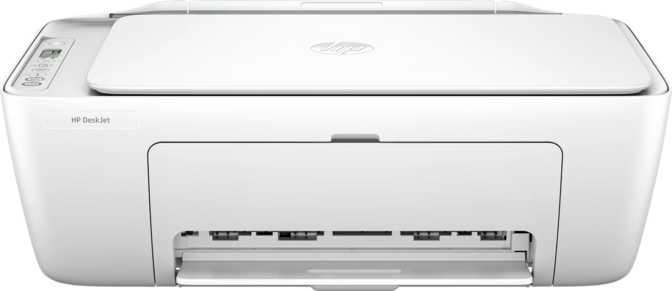
At just under 3.5 kilograms and with a footprint roughly the size of two hardcover books placed side by side, the DeskJet 2810e doesn't impose itself on a workspace. The 425mm width keeps it narrower than many comparable all-in-ones, and the 154mm depth means it can live comfortably against a wall without pushing everything else forward.
The build is plastic throughout, which is standard at this price tier and not a criticism — the unit feels solid enough for light household handling. The flatbed scanner lid lifts at a slight angle and lies flat against originals with adequate contact pressure, which matters for scan quality. There are no moving parts that feel fragile, and the paper path — straight in, curve out — is simple enough that jams are infrequent with properly loaded paper.
Tray Design: Functional but Limiting
The single input tray holds 60 sheets, and the output area catches up to 25 pages before requiring attention. For a user printing 20–30 pages at a time, neither of these figures creates a problem. For anyone who regularly prints longer documents in one go, you'll be returning to manage paper output mid-job. There's no second tray option and no automatic document feeder — every page you scan must be placed on the flatbed glass manually, one at a time.
The control panel uses physical buttons rather than a touchscreen, which keeps the interface simple and removes a potential failure point. There's no display screen of any kind, so status feedback comes from LED indicators and the companion smartphone app rather than on-device menus.
Print Performance: Speed, Quality, and Volume
Output Speed in Practical Terms
Inkjet printers are not measured in the same terms as laser printers, and the DeskJet 2810e doesn't attempt to blur that distinction. Black text documents emerge at around 7.5 pages per minute, and color output runs closer to 5.5 pages per minute. For context: printing a 10-page black-and-white document takes roughly 90 seconds from start to finish. That's fast enough for home use. It would frustrate anyone who expects laser-like throughput.
The first page takes approximately 15 seconds (black) or 19 seconds (color) to appear after a print command is sent from sleep. This warm-up delay is typical of inkjet technology and is largely irrelevant for single-document jobs. If you're printing one boarding pass or one letter, the total time from click to finished page is reasonable. If you're printing 80 pages in one session, multiply that speed by the page count and decide whether the wait fits your workflow.
Print Resolution and Image Quality
The print resolution reaches 4800 x 1200 dots per inch, which is strong for an entry-level home printer. In practical terms, this translates to sharp text at all standard font sizes, clean line graphics, and photo prints with visible tonal gradation and fine detail. The caveat: this printer does not support borderless printing, meaning photographs will always carry a white border. For users printing family snapshots to display or share, bordered prints are often acceptable. For users who want edge-to-edge photo output, this is a meaningful limitation. Text documents at standard print settings look crisp and professional, with no bleeding or feathering at letter sizes down to 8pt.
Monthly Volume: Know Your Ceiling
HP positions this printer for a ceiling of around 100 pages per month in normal home use. The printer's maximum duty cycle is ten times higher, meaning the mechanics can handle significantly more — but the inks, printhead longevity, and overall design optimization target light, intermittent use. A household printing 30–80 pages monthly will be well within the sweet spot. A small business or home office producing 300 or more pages monthly should look further up the product ladder.
Double-sided printing is not automated on this unit. Every two-sided document requires the user to manually flip the paper and run it through again. For printing the occasional two-sided brochure or booklet, this is a minor inconvenience. For users who routinely print double-sided documents, the process becomes tedious enough to consider a model that handles it automatically.
Copying: Quick for Simple Jobs
Copying a single black-and-white page takes approximately 15 seconds from lid-close to finished copy. Color takes a few seconds longer. Neither figure is competitive with office machines, but for making a copy of a utility bill, a child's permission slip, or a handwritten note, the speed is entirely acceptable.
Copy density is fixed — there's no dial or software setting to lighten or darken output. For standard documents printed on white paper, this is fine. For documents that are already faint (carbon copies, faded originals), you cannot boost the output darkness.
Scanning: Flatbed Only, PDF-Ready
What the Flatbed Covers
The flatbed scanner handles standard letter and legal-size originals with solid quality. Scanned documents can be exported directly as PDF files — the format most commonly needed for emailing contracts, sharing forms, or archiving paperwork. This makes it genuinely useful for home office tasks like submitting scanned documents to insurers, banks, or employers.
The Multi-Page Scanning Gap
Without an automatic document feeder, scanning a 10-page report means lifting the lid, repositioning, and rescanning ten times. This isn't a flaw — it's a design choice consistent with the printer's light-use positioning — but it's a significant real-world friction point for anyone who regularly digitizes multi-page documents. If document digitization is a frequent task in your household, an ADF-equipped model is worth the step up.
There is no duplex scanning, and no auto-detection mode that triggers a scan without pressing a button. Every scan is a manual, deliberate action — which is exactly what this printer's audience typically needs.
Connectivity: Wireless-Only and Genuinely Simple
Wi-Fi Without Wires — Or Anything Else
The DeskJet 2810e connects exclusively over Wi-Fi. There are no USB ports, no Ethernet port, no Bluetooth, no NFC, and no Wi-Fi Direct. Every device that prints to this printer must share the same wireless network. For most modern households with a home router, this is no limitation at all — phones, tablets, and laptops all operate over Wi-Fi already.
The absence of a USB connection does close one door: you cannot connect this printer directly to a computer with a cable as a fallback. If your home Wi-Fi goes down, so does your ability to print. For users in areas with unreliable internet service, or those who want a wired option for any reason, this is worth acknowledging.
The Wi-Fi standard on board is 802.11n (Wi-Fi 4), which handles home printing tasks without any real-world throughput limitations. Print files are small by networking standards, and 802.11n delivers them quickly enough that you won't notice the difference between this and a newer Wi-Fi standard.
Connectivity Checklist
- Wi-Fi 4 (802.11n)
- AirPrint (iPhone & iPad)
- Mopria (Android)
- HP Smart App
- Wi-Fi Direct
- USB Ports
- Ethernet
- Bluetooth
- NFC
AirPrint, Mopria, and the HP Smart App
iPhone and iPad users can print directly from any app using AirPrint — no setup required beyond connecting the printer to the same network. Android users are covered through Mopria support, which is similarly built into Android's print service. Both protocols allow photo printing, document printing, and scan retrieval from a mobile device without needing to install additional software.
HP's own Smart app extends this further. It allows scanning directly to your phone, adjusting print settings, monitoring ink levels, and troubleshooting — all from a mobile interface that most users will find clearer than navigating printer menus. The app is a genuine strength at this price point, and for users who primarily work from a phone or tablet, it makes the printing experience noticeably smoother. There is no voice assistant integration — Alexa and Google Assistant are not supported — but this is a niche feature whose absence will go unnoticed by the vast majority of users.
Energy Efficiency: A Quiet Strength
The DeskJet 2810e carries a top energy efficiency rating, which reflects meaningful engineering choices rather than marketing language. In standby, it draws just 1.4 watts — roughly equivalent to a low-power LED night light. Over a year of typical home use, that figure adds up to negligible energy cost.
For users who are environmentally conscious or who simply leave the printer plugged in continuously, the low power draw is a practical advantage. This is one area where the 2810e genuinely competes above its price class.
Who Should Buy This Printer — and Who Should Not
This Printer Works Well For
- Students printing assignments, lab reports, lecture slides, or application materials on a weekly or less-frequent basis.
- Households that need a printer for utility tasks — boarding passes, school forms, occasional photographs, and online order confirmations.
- Remote workers who need to scan a document to PDF a few times per week and print the occasional page without leaving home.
- iPhone and iPad users who want zero-configuration printing from their device using AirPrint.
- First-time printer buyers who want a low-complexity setup and a familiar brand.
This Printer Is Not Right For
- Home offices with daily printing demands above 100 pages per month — ink costs will mount faster than with a model built for moderate-to-high throughput.
- Users who scan multi-page documents regularly — the absence of an ADF turns a quick task into a slow, manual one.
- Anyone who needs double-sided printing without manual flipping — there's no automatic duplexing.
- Small businesses or shared workgroup environments — tray capacity, print speed, and monthly volume ceiling are all calibrated for single-user home context.
- Photographers wanting borderless prints — the fixed white border around all printed photos is a real limitation for display-quality output.
How It Compares to the Competition
The buying decision comes down to whether the features it omits are ones you actually use. A printer with an ADF serves you better if document scanning is regular. A printer with auto-duplex serves you better if you routinely produce two-sided documents. The DeskJet 2810e wins if size, simplicity, and light-use reliability are your primary criteria.
| Feature | HP DeskJet 2810e | ADF-Equipped Alternative | Auto-Duplex Alternative |
|---|---|---|---|
| Automatic Document Feeder | No | Yes | Varies |
| Auto Duplex Printing | No | Varies | Yes |
| Borderless Photo Printing | No | Varies | Varies |
| AirPrint Support | Yes | Varies | Varies |
| Wireless-Only Setup | Yes | Usually wired + wireless | Usually wired + wireless |
| Recommended Monthly Volume | ~100 pages | Higher | Higher |
| Physical Footprint | Compact | Larger | Larger |
| Energy Efficiency Rating | Top Rated | Varies | Varies |
Honest Assessment
Where It Excels
- Wireless setup is genuinely straightforward, with most devices connecting without any manual configuration effort.
- AirPrint and Mopria support means iPhone, iPad, and Android users can print without installing any additional apps.
- The HP Smart app is among the better printer companion apps in this category — genuinely useful for scanning, ink monitoring, and troubleshooting.
- Top-tier energy efficiency is a real practical advantage — negligible standby power draw makes it safe and economical to leave permanently plugged in.
- Print resolution produces output quality that exceeds expectations for the price tier — text is sharp, and photos at bordered sizes look genuinely good.
Where It Falls Short
- The absence of an automatic document feeder is the most significant limitation for home office users. Multi-page scanning becomes a slow, manual, lid-lifting process.
- No auto-duplex printing adds manual steps to every two-sided document job — a secondary inconvenience that compounds over time.
- No wired connectivity means that if your Wi-Fi has problems, your printer has problems. There is no cable fallback option whatsoever.
- Onboard memory is functional but reflects the entry-level positioning — complex or graphics-heavy files may not queue as efficiently.
- Ink costs over the printer's lifetime often exceed its purchase price. Included cartridges are starter capacity. HP's Instant Ink subscription can reduce ongoing costs but requires a continuing commitment.
Questions Real Buyers Ask Before Purchasing
The answers below address the most common concerns shoppers have about the HP DeskJet 2810e before committing to a purchase.
Final Verdict
The HP DeskJet 2810e All-in-One is a well-executed entry-level home printer for users whose printing needs are genuinely light. It delivers good print quality, clean wireless connectivity with AirPrint and Mopria support, a usable companion app, and top-tier energy efficiency in a compact, uncomplicated package.
Buy It If
- You print under 100 pages per month
- You primarily work from a phone or tablet
- You want a quick setup that stays out of the way
- You don't need ADF, auto-duplex, or borderless photo output
Pass On It If
- You need an automatic document feeder for multi-page scanning
- Auto-duplex printing is a regular part of your workflow
- You want edge-to-edge borderless photo output
- You need a USB backup connection for when Wi-Fi fails
For its intended audience, the DeskJet 2810e is a practical, reliable choice that doesn't overpromise. That kind of honest fit between product and purpose is harder to find than it sounds. At a modest step up in price, models exist that address each of its gaps — and for users who will regularly bump against those limitations, that step up is worth taking.