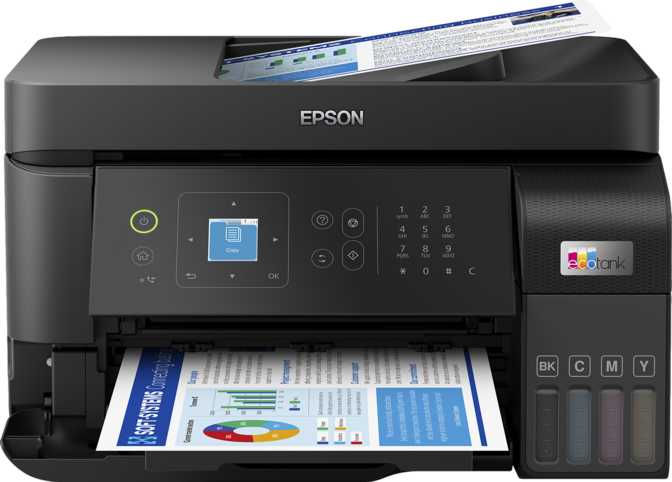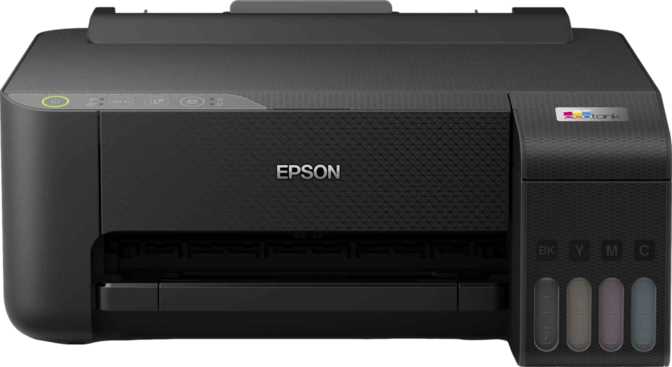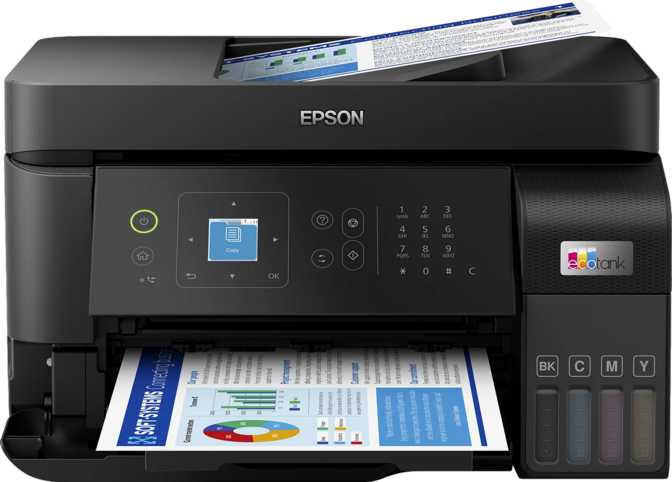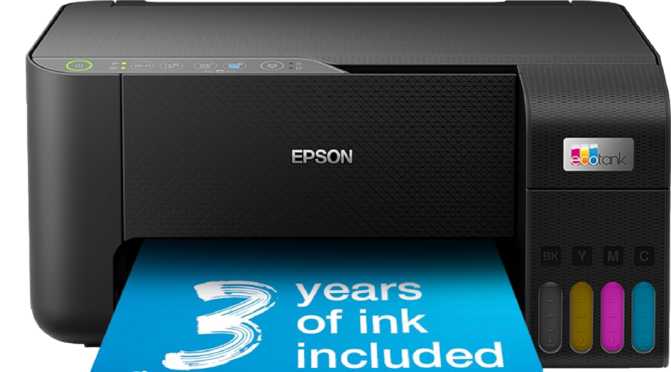
Epson EcoTank ET-2860 All-in-One: An Honest, In-Depth Review
PrintersA printer that runs out of ink the same month you buy it is one of modern life's quiet frustrations — and it's exactly the problem Epson built the EcoTank line to solve. The ET-2860 takes that refillable-ink philosophy and shrinks it down into one of the simplest all-in-one printers Epson makes, stripping away automatic document feeding, double-sided printing, and a touchscreen in favor of a tight focus on three jobs done well and done cheaply over time: print, copy, and scan. Whether that trade-off — fewer bells and whistles for dramatically lower running costs — fits your desk and your habits is what the rest of this review will help you decide.
A Compact Footprint Built for Tight Spaces
This is not a printer that demands its own furniture. The ET-2860's footprint is closer to a small toaster oven than a traditional office printer, and at under nine pounds, it's light enough to lift with one hand and relocate from a closet shelf to a desk whenever you actually need it. That matters more than it sounds: a lot of home printers get banished to a corner because they're too bulky to live on an active desk, and this one is sized specifically to avoid that fate.
The design simplicity carries through to the control layout. There's no touchscreen here — you're working with physical buttons rather than a tappable display. For some buyers that reads as “basic,” but there's a practical upside: fewer moving electronic parts means fewer things that can glitch or fail down the road, and the learning curve for a first-time printer owner is shorter when there's no menu system to navigate.
One structural choice worth flagging early: there's a single paper input tray, holding up to 100 sheets, with a 30-sheet output tray catching what comes out. That's enough capacity for normal household or student use, but it means you're swapping paper types in and out of one tray rather than keeping, say, photo paper loaded in a dedicated second tray the way some larger all-in-ones allow.
The EcoTank Difference: How the Ink System Changes the Math
The name on the box isn't marketing fluff — it describes the core mechanism that separates this printer from nearly every cartridge-based inkjet at a similar price. Instead of clicking small ink cartridges in and out every few hundred pages, the ET-2860 uses refillable tanks that you top up directly from ink bottles. The practical effect is a printer that costs a bit more upfront but flips the ongoing cost structure on its head.
With a traditional cartridge inkjet, you're paying a premium per milliliter of ink, and many of those printers force you to replace an entire color cartridge even if only one color ran dry. A tank system holds a much larger ink reserve per fill and is engineered to be refilled at a fraction of cartridge pricing, which is the entire reason EcoTank exists as a product line. If you print with any regularity — a few pages a week, school assignments, the occasional family photo — this is where the math starts to favor the ET-2860 over its cheaper-looking cartridge rivals within months, not years.
It's also worth flagging the backing Epson puts behind this system: a three-year warranty, noticeably longer than the one-year coverage that's standard on most budget printers. That's a meaningful signal of confidence in how the tank mechanism holds up over sustained use, not just a number on a spec sheet.
Power Consumption: A Printer That Barely Touches Your Electric Bill
Running this printer is cheap in more ways than ink alone. While actively printing, it draws roughly the same power as a couple of smartphone chargers running at once — a fraction of what laser printers pull, since laser models need to heat an internal drum every time they wake up, while this inkjet has no such warm-up draw.
Left plugged in and idle, it sips an amount of power so small it's effectively rounding-error territory on a monthly electric bill, similar to leaving a phone charger in the wall with nothing attached. If you've been avoiding leaving your printer plugged in to save electricity, that's simply not a concern here.
Print Performance: Speed and Sharpness in Daily Use
Print speed is where this printer quietly outperforms its modest size. Black-and-white text moves through fast enough that a multi-page report or a stack of homework assignments can finish printing in well under a minute, with the printer producing its first page almost the instant you hit print — there's no laser-style warm-up delay to wait through. Color documents and photos take longer per page, which is the normal trade-off across the inkjet category: color printing lays down more ink in more passes, and the first color page takes a bit longer to emerge than the first black page does.
| Job Type | What to Expect |
|---|---|
| Black text documents | Fast — a 20–30 page report finishes in under a minute |
| Color documents or photos | Noticeably slower per page, fine for occasional jobs rather than bulk runs |
| First page out (black) | Near-instant, no warm-up wait |
| First page out (color) | A short extra wait before the first sheet, then a steady pace |
On image quality, the printhead is capable of placing an extremely fine grid of ink dots — far finer than what's needed for ordinary text, but exactly what photo printing and detailed graphics benefit from in the form of smoother gradients and less visible dot pattern. The catch is that this printer doesn't support borderless printing, so every photo comes out with a thin white margin around the edges rather than ink running to the paper's edge. For text-heavy home and school use this is a non-issue; for anyone hoping to print edge-to-edge photo prints, it's a real limitation to know about up front.
Double-sided printing is the other notable absence. There's no automatic duplexer, so two-sided documents require manually flipping the stack and reinserting it — most print drivers can walk you through printing all the odd pages first, then prompting you to flip and feed the even pages. It works, but it adds friction that automatic-duplex printers don't have, so anyone printing double-sided constantly should factor in that extra hands-on step.
Copying and Scanning: Where the Flatbed Helps — and Where It Doesn't
Scanning happens on a flatbed: lift the lid, place one page or photo face-down, close the lid, scan. For single documents, IDs, photos, or the occasional signed contract page, this works exactly as well as you'd expect and produces clean results.
Where it shows its limits is with multi-page jobs. There's no automatic document feeder, which means there's no way to load a stack and walk away — every single page has to be placed and scanned individually, one at a time. The same goes for copying multi-page sets. If your printing life involves regularly digitizing thick document stacks, this is the single biggest functional gap to weigh against the lower running costs.
- No duplex scanning — scanning both sides of a page means flipping it manually and scanning twice, consistent with the lack of an ADF.
- No automatic scan mode — you'll select scan settings like resolution and file type yourself rather than the printer guessing the right mode, a small extra step that becomes routine quickly.
- No built-in OCR — scanned pages come out as image files, not editable or searchable text. Turning paper into editable documents requires separate OCR software on your computer or phone.
- No skip-blank-page function — blank pages in a stack get scanned and saved as blank pages too, with no automatic filtering.
- No adjustable copy density — copy settings are fixed rather than offering a lighten/darken dial, fine for standard originals but with no workaround for faded source documents.
Copy speed mirrors print speed closely: a single black-and-white copy comes out in about ten seconds, color in around sixteen, so for the one-off copy jobs this printer is actually built for, turnaround is quick.
Connectivity and Everyday Convenience
This is a Wi-Fi-first printer, and the standards it supports cover the situations most home users actually run into. AirPrint and Mopria mean Apple and Android phones alike can print without installing extra drivers, and Wi-Fi Direct lets a phone or laptop connect straight to the printer without going through a home router at all — useful if you're printing somewhere a router isn't part of the picture, like a dorm room or a temporary workspace.
| Connectivity Feature | Status |
|---|---|
| Wi-Fi network printing | SupportedSupported |
| Apple AirPrint | SupportedSupported |
| Wi-Fi Direct (no router needed) | SupportedSupported |
| Mopria (Android) | SupportedSupported |
| Companion smartphone app | SupportedSupported |
| USB wired connection | SupportedSupported (1 port) |
| Wired Ethernet | Not supportedNot supported |
| Bluetooth | Not supportedNot supported |
| NFC | Not supportedNot supported |
| External memory card slot | Not supportedNot supported |
| Voice assistant (Alexa / Google) | Not supportedNot supported |
What's absent is just as relevant to know. There's no Ethernet port, so this is wireless-only — fine for most homes, but it means no fallback wired connection in a room with a weak Wi-Fi signal. There's no slot for plugging in an SD card or USB drive directly either; your phone or computer always has to be the middleman between your files and the printer.
Real-World Usage: Who This Printer Is Actually For
Makes the Most Sense For
- Students and home users who print moderately but regularly, and want ink costs to stop climbing every semester
- Anyone who occasionally wants to print a color photo or graphic without paying cartridge-level prices for it
- Buyers who value a small, light, easy-to-store printer over a feature-loaded office machine
- Households frustrated by constantly buying replacement cartridges for a printer that sits unused most of the month
A Poor Match For
- Small offices or home-office setups that regularly scan or copy multi-page document stacks, given the lack of an ADF
- Anyone who prints double-sided documents constantly and wants that handled automatically
- Photographers or hobbyists who want true borderless, edge-to-edge prints
- Anyone needing fax capability, wired Ethernet reliability, or voice-assistant-triggered printing
How the ET-2860 Stacks Up Against Other Printer Types
| Printer Type | Upfront Cost | Ongoing Ink/Toner Cost | Best Suited For |
|---|---|---|---|
| ET-2860 (refillable EcoTank inkjet) | Higher upfront | Low — refillable tanks, infrequent buying | Regular home/student printing on a tight long-term budget |
| Standard cartridge inkjet | Lower upfront | High — frequent cartridge replacement | Light, occasional printing where upfront price matters most |
| Laser printer | Moderate to high upfront | Moderate — toner lasts longer per unit but costs more | High-volume black text and office environments |
| Higher-tier EcoTank with ADF and duplex | Higher upfront | Low | Home offices needing batch scanning and automatic double-sided printing |
The pattern is consistent across the category: you either pay more upfront and less over time (ink tanks, this printer included), or less upfront and more over time (cartridges). Laser sits apart as the choice when black text volume is high and color isn't a priority. And within Epson's own EcoTank range, the ET-2860 represents the entry point — the trade-off for its lower price within the lineup is the missing ADF and duplex printing that pricier EcoTank siblings include.
Honest Strengths and Weaknesses
Strengths
The strongest case for this printer is almost entirely financial and practical: a refillable ink system that meaningfully lowers cost per page over the life of the machine, a compact and light build that doesn't demand dedicated furniture, genuinely fast black-text printing with no warm-up lag, power draw low enough to ignore on an electric bill, broad phone-printing compatibility across both Apple and Android, and a three-year warranty that's longer than what most budget printers offer.
Weaknesses
The honest weaknesses cluster around document handling at scale. The lack of an automatic document feeder is the limitation that will matter most to anyone scanning or copying more than a page or two at a time. The absence of automatic duplex printing adds friction to any double-sided job, no OCR means scanned paper stays as images rather than becoming searchable text, and the connectivity list skips wired Ethernet, Bluetooth, and NFC, ruling out some office-style setups.
Frequently Asked Questions
Final Verdict
The Epson EcoTank ET-2860 earns its place as a budget pick specifically for households and students who print with some regularity and are tired of paying cartridge prices to do it. Its combination of fast black-text printing, low day-to-day power draw, and a refillable ink system built for years of use makes it a smart long-term buy for light-to-moderate home printing, occasional color and photo jobs, and single-page scanning and copying.
It is not the right choice if your routine involves scanning thick document stacks or printing double-sided paperwork on a regular basis — for those workflows, stepping up to a higher-tier EcoTank model with an ADF and duplex printing, or considering a laser printer for heavy black-text volume, will serve you better. For everyone else looking for a compact, low-maintenance, low-running-cost printer that handles the basics well, this one is worth the buy.